
Overview
The PVS-Studio Java static code analyzer consists of 2 main parts: the kernel, which performs the analysis, and plugins for integration in build systems (Gradle, Maven) and IDE (IntelliJ IDEA).
Plugins get project structure (a collection of source files and classpath), then pass this information to the analyzer core. In addition, plugins are responsible for deploying the core for analysis — it will be automatically loaded at the first run.
It's also possible to run the analyzer directly, listing the sources and classpath.
Analysis can be done if your computer meets the following system requirements:
Operating system: Windows, Linux, macOS;
Minimum required Java version to run the analyzer with: Java 8 (64-bit). Note: A project being analyzed could use any Java version;
Minimum version of IntelliJ IDEA: 2017.2.
Plugin for Maven
If the project you're working on is based on the Maven build system, you can use the plugin pvsstudio-maven-plugin. To do this, you need to add the following to the pom.xml file:
<pluginRepositories>
  <pluginRepository>
    <id>pvsstudio-maven-repo</id>
    <url>http://files.viva64.com/java/pvsstudio-maven-repository/</url>
  </pluginRepository>
</pluginRepositories>

<build>
  <plugins>
    <plugin>
      <groupId>com.pvsstudio</groupId>
      <artifactId>pvsstudio-maven-plugin</artifactId>
      <version>{VERSION_PVS_JAVA}</version>
      <configuration>
        <analyzer>
          <outputType>text</outputType>
          <outputFile>path/to/output.txt</outputFile>
          ....
        </analyzer>
      </configuration>
    </plugin>
  </plugins>
</build>
Before running the analysis you need to enter the license data:
mvn pvsstudio:pvsCredentials "-Dpvsstudio.username=USR" "-Dpvsstudio.serial=KEY"
After that, the license information will be saved in %APPDATA%/PVS-Studio-Java/PVS-Studio.lic on Windows or in ~/.config/PVS-Studio-Java/PVS-Studio.lic on macOS and Linux.
After that you can run the analysis:
$ mvn pvsstudio:pvsAnalyze
In the block <analyzer> you can configure the analyzer. A list of all the settings can be found here.
Plugin for Gradle
If the project you're working on is based on the Gradle build system, you can use the plugin pvsstudio-gradle-plugin. To do this, you need to add the following in the build.gradle file:
buildscript {
  repositories {
    mavenCentral()
    maven {
      url uri('http://files.viva64.com/java/pvsstudio-maven-repository/')
    }
  }
  dependencies {
    classpath group: 'com.pvsstudio',
              name: 'pvsstudio-gradle-plugin',
              version: '{VERSION_PVS_JAVA}'
  }
}
apply plugin: com.pvsstudio.PvsStudioGradlePlugin
pvsstudio {
  outputType = 'text'
  outputFile = 'path/to/output.txt'
  ....
}
Before running the analysis you need to enter the license data:
./gradlew pvsCredentials "-Ppvsstudio.username=USR" "-Ppvsstudio.serial=KEY"
After that, the license information will be saved in % APPDATA%/PVS-Studio-Java/PVS-Studio.lic on Windows OS or in ~/.config/PVS-Studio-Java/PVS-Studio.lic on macOS and Linux.
After that you can run the analysis:
$ ./gradlew pvsAnalyze
In the block 'pvsstudio' you can configure the analyzer. A list of all settings can be found here.
Plugin for IntelliJ IDEA
The PVS-Studio Java analyzer can be also used as a plugin for IntelliJ IDEA. In this case, the parsing of the project structure is made by means of this IDE and the plugin provides a convenient graphic interface to work with the analyzer.
The PVS-Studio plugin for IDEA can be installed:
Once you installed the plugin, you need to enter the license data:
1) Analyze -> PVS-Studio -> Settings

2) Registration tab:
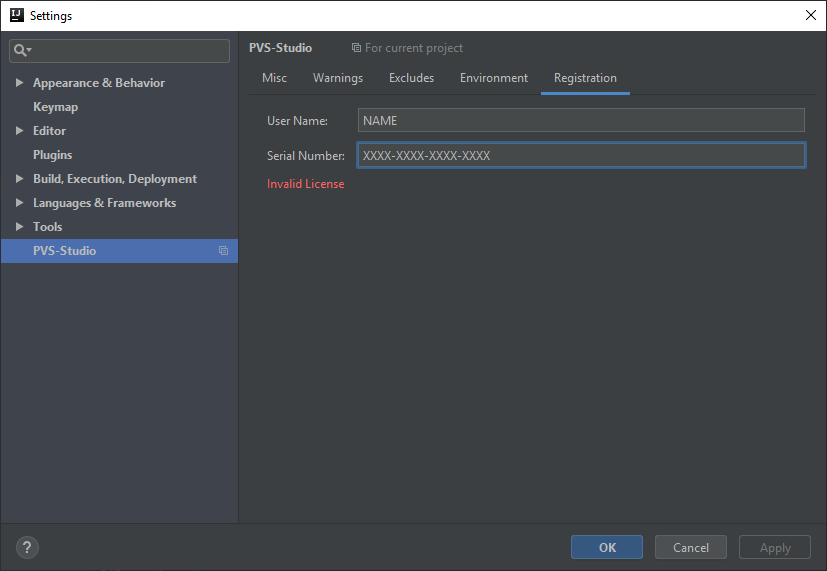
You can then run the analysis of the current project:

Licensing
The PVS-Studio analyzer is meant for teams of developers and essentially represents a proprietary B2B product. To play around with all analyzer abilities, you can request a trial key.
If you are developing open projects, or for example, you are a student, then you can use one of the free licensing options of PVS-Studio.
False Positives Suppression
To fight against false positives, the analyzer provides a set of different mechanisms.
1. Using special comments in the code:
void f() {
    int x = 01000; //-V6061
}
2. Using the suppress file.
3. Using the @SuppressWarnings(....) annotations.
The analyzer is aware of annotations and might not issue warnings on the code that has already been marked. For example:
@SuppressWarnings("OctalInteger")
void f() {
    int x = 01000;
}
Conclusion
What we've just looked at is only a small part of what could be told. For example, it's also possible to integrate with SonarQube and much more. PVS-Studio Java is a new direction that is actively developing:
- new functionality is added,
- abilities are expanding,
- diagnostic rules are added and improved,
- and much more.
To fully explore the existing analyzer abilities and not to miss the emergence of new ones in future, follow the PVS-Studio blog.


Комментариев нет:
Отправить комментарий